

MT5 Hotkeys: Keyboard Shortcuts and One-Key Trading in MetaTrader 5
Rene JelenMetaTrader 5 has no built-in keyboard shortcut to buy, sell or close a trade. F9 opens the New Order window and Alt + T shows the One Click Trading panel, but every order still needs a mouse click. To trade with one key you need one of three things:
- One Click Trading with the mouse,
- a script with a hotkey,
- or an Expert Advisor (EA) panel that listens to your keyboard.
Last checked: November 2026, MetaTrader 5 desktop for Windows and macOS.
Which MT5 shortcuts help with trading?
These are MetaTrader 5's own shortcuts that matter most when you trade:
| Shortcut | What it does |
|---|---|
| F9 | Opens the New Order window |
| Alt + T | Shows or hides the One Click Trading panel on the chart |
| Alt + B | Opens the Depth of Market. With One Click Trading on, its Sell, Buy and Close buttons trade instantly; otherwise they open the order window |
| Ctrl + F9 | Opens the Trade tab in the Toolbox and moves the keyboard focus there |
| Ctrl + E | Turns Algo Trading (Expert Advisors) on or off |
| Ctrl + T | Shows or hides the Toolbox |
| Ctrl + M | Shows or hides Market Watch |
| Ctrl + N | Shows or hides the Navigator |
And the chart shortcuts traders use most:
| Shortcut | What it does |
|---|---|
| + / − | Zoom the chart in or out |
| Alt + 1 / 2 / 3 | Bars, candlesticks or line chart |
| Ctrl + F | Crosshair |
| F11 | Full screen |
| F12 / Shift + F12 | Move the chart one bar left or right |
| Ctrl + W | Close the current chart |
How do I turn on One Click Trading in MT5?
Right-click the chart and choose One Click Trading, or press Alt + T. A small panel with Sell, Buy and the volume appears in the top-left corner of the chart. At first, clicking Sell or Buy there opens the order window (the same one as F9) with the volume filled in, so it's still two clicks.

To trade in one click, click One Click Trading at the bottom left of that order window and accept the terms with I Accept these Terms and Conditions. Its icon gets a border while it's on, and from then on Sell and Buy send the order straight away. Clicking One Click Trading again turns it off, and you accept the terms again next time.

The panel sends market orders instantly, but you still click Sell or Buy with the mouse, and you set the stop loss and take profit by hand after the trade opens. Alt + T only shows or hides the panel.
Option 1: give a script a hotkey
MetaTrader 5 can assign a key combination to any script, indicator or Expert Advisor in the Navigator: right-click it and choose Set hotkey. With a script that buys and one that sells, you get two trading keys.
The catch: MT5 comes with no ready-made buy or sell script, so you need to find or write one, and each script does one fixed thing with one fixed size. Closing trades, cancelling orders and changing the size all need scripts of their own.

Option 2: use a trading panel with hotkeys
An Expert Advisor can listen to the keyboard, usually only while its own chart is active. Our TP Control Panel is one, and its keys work anywhere in MetaTrader 5, with no need to click the chart first. It adds a panel to your chart and uses these keys:
| Keys | What happens |
|---|---|
| Shift + B | Buy at market, or place the LIMIT line as a buy order |
| Shift + S | Sell at market, or place the LIMIT line as a sell order |
| Shift + T | Switch to LIMIT: a line appears at the price, ready to move |
| Shift + D | Switch back to MARKET |
| Shift + C | Close positions: all, the first, the last or only the profitable ones |
| Shift + V | Cancel pending orders |
| Shift + A | Turn the panel on or off |
The panel works out the lot size from the risk you choose (lots, % of your balance or a fixed amount), lets you drag the stop loss and take profit on the chart, and has partial take profit, break even, an automatic break even and a trailing stop. It runs on MetaTrader 5 for Windows and macOS, and there is an MT4 version too.
Most of those features came from traders' feedback. MetaTrader 5 gives Expert Advisors so much room that the question was never whether MT5 could do something, only how it would best fit into the panel.
No Trading Keyboard? The panel has a virtual one: the same keys on screen, one click each. We first built the panel for our keyboard only and added the virtual one so the panel works on its own too. Even with the Trading Keyboard on my desk, I often use the virtual one: the real keyboard isn't always plugged in, and for a quick test during development it's just as easy.

Watch the panel on a real chart:

Option 3: one key per action with a trading keyboard
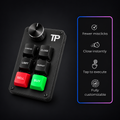
Shift + letter shortcuts work, but in a fast market it's easy to hit the wrong combination. The Trading Keyboard puts each action on its own key. Its knob even moves the LIMIT, stop loss or take profit line, or changes the lot size.
The TP Control Panel comes with the keyboard as a free gift, and our setup page writes the MT5 keys to the keyboard in one click.
We timed it: one trade, five ways
We opened the same buy trade on a demo account in each way and timed it. One try each, rounded, so treat the numbers as a rough guide:
| How | What it took | Time |
|---|---|---|
| F9 New Order window | Choose the volume, type the stop loss and take profit prices, click Buy | 11 s |
| One Click Trading (turned on) | Volume already set; click Buy (about 1.5 s), then click the stop loss and take profit and type their prices (about 6 s) | 7.5 s |
| TP Control Panel + Trading Keyboard | Turn on SL and TP, drag both lines into place, press BUY | 7 s |
| TP Control Panel + Trading Keyboard, SL and TP already set | Press BUY | 1 s |
| TP Control Panel + virtual keyboard | Move the mouse, open the on-screen keyboard, click BUY | 2 s |
This is "about 1 second" on the Trading Keyboard: BUY opens the trade with the stop loss and take profit already set, CLOSE closes it.
Before you trade from the keyboard
- Start on a demo account. One key means one trade: get used to it before it's real money.
- Algo Trading must be on (Ctrl + E) for any EA panel to place trades.
- Your broker must allow Expert Advisors. Most do; if you're not sure, ask them.
- Keep MetaTrader 5 open. An EA's automatic break even and trailing stop only work while the platform runs.
Written by Rene Jelen, CTO at Trading Precision, who's in charge of the TP Control Panel for MetaTrader 5 and MetaTrader 4.