

thinkorswim Hotkeys: Every Active Trader Shortcut and How to Turn Them On
Rene Jelenthinkorswim has trading hotkeys, but only in the desktop app, in Active Trader and on charts, and they're off until you turn them on. Once you tick Enabled next to Active Trader in the Hot keys settings, Alt + B buys at market, Alt + S sells at market and Alt + F closes your position. thinkorswim web, the Schwab website and the mobile app have no trading hotkeys.
Last checked: November 2026, thinkorswim desktop for Windows (paperMoney).
How do I turn on hotkeys in thinkorswim?
Open the Hot keys settings and switch on the Active Trader category:
- In thinkorswim desktop, click Setup in the top-right corner and choose Application Settings…
- Open the Hot keys tab.
- Next to Active Trader, tick Enabled.
- Click Apply settings.

The trading hotkeys are off by default for a reason: with Auto send on, a single key press sends a real order. Categories such as WatchList and Chart are on from the start.
Every Active Trader hotkey in thinkorswim
These are all the commands in the Active Trader category, with the shortcut thinkorswim gives them. A dash means there's no default, but you can set your own.
| Command | Default | What it does |
|---|---|---|
| Buy @mkt | Alt + B | Buys at market |
| Sell @mkt | Alt + S | Sells at market |
| Buy @bid | – | Limit order to buy at the current bid |
| Buy @ask | – | Limit order to buy at the current ask |
| Sell @ask | – | Limit order to sell at the current ask |
| Sell @bid | – | Limit order to sell at the current bid |
| Flat Position | Alt + F | Closes your position in the symbol at market, after an "Are you sure?" |
| Flat Now | – | Closes the position straight away, without asking |
| Reverse Position | Alt + R | Turns a long into a short of the same size, or the other way round, after an "Are you sure?" |
| Reverse Now | – | Reverses straight away, without asking |
| Cancel All | – | Cancels every working order in the symbol, buys and sells, after an "Are you sure?" that lists them |
| Cancel Buy | – | Cancels your working buy orders in the symbol |
| Cancel Sell | – | Cancels your working sell orders in the symbol |
| Auto Send on/off | Alt + A | Switches order confirmations off or on |
| Zoom In / Zoom Out | Alt + [ / Alt + ] | Zooms the price ladder |
| Reset Zoom | Alt + \ | Resets the ladder zoom |
Every order uses the quantity and the Template set in Active Trader's Big Buttons panel, and acts on the symbol loaded in Active Trader: a stock, a single option contract, a future or a forex pair. When an "Are you sure?" appears, Enter answers Yes.
One key for an entry with a stop and a target
Set Active Trader's Template (next to the quantity) to TRG w/ bracket and choose the distances for the target and the stop. From then on, Alt + B sends three orders at once: the market entry, plus a take-profit limit and a stop that cancel each other (OCO) once one fills.

Flat Position (Alt + F) closes the position and cancels the stop and target with it, so nothing is left working. Careful with Cancel All, though: it cancels the stop and target too, and the position stays open without protection.
Other thinkorswim shortcuts worth knowing
These work out of the box, with no need to enable anything:
| Shortcut | What it does |
|---|---|
| Ctrl + H | Home screen |
| Ctrl + 1 to Ctrl + 8 | Monitor, Trade, Analyze, Scan, MarketWatch, Charts, Tools, Help |
| Alt + 1 to Alt + 9 | The sub-tabs of the current tab (on Trade: All Products, Forex Trader, Futures Trader, Active Trader…) |
| Ctrl + Alt + L | Lock thinkorswim |
| Ctrl + T | Chart time frame |
| Ctrl + E | Edit studies on the chart |
| Ctrl + + / Ctrl + − | Zoom the chart in or out |
| Ctrl + Z / Ctrl + Shift + Z | Undo or redo on the chart |
The full list for your own setup: Print hot keys layout at the bottom of the Hot keys window.
How do I set my own hotkey in thinkorswim?
Click the command, choose Custom, tick Ctrl or Alt (Shift only together with one of them), pick the key from the list and click Apply settings. Typing the letter jumps to it in the list. thinkorswim doesn't record a key press, so you can't just press the combination you want, and a key without Ctrl, Alt or Shift gets the warning "This hotkey must contain a modifier key".

A good first one is Cancel All, which has no default; Alt + V is free. Set all to defaults at the bottom of the window puts every shortcut back.
Do thinkorswim hotkeys work in thinkorswim web or the mobile app?
No. thinkorswim web (trade.thinkorswim.com) has no hotkey settings at all, and neither do the Schwab website and the thinkorswim mobile app. Trading hotkeys need thinkorswim desktop on Windows or macOS.
In the desktop app they work on the Trade > Active Trader tab and on the Charts tab:
- Trade > Active Trader can show two or more Active Traders. The keys trade the one you clicked last, so click the one you want before the first trade.
- On the Charts tab, the keys trade the chart's symbol. Open AT on the right edge of the chart for the quantity, the Template (brackets work here too) and auto send.
- On tabs such as Monitor they don't trade: holding Alt only shows the shortcut letters of the buttons.
Auto send: confirm every order, or send it straight away?
With auto send off:
- Buy and sell hotkeys open the Order Confirmation Dialog. The order goes only after you click Send; Enter doesn't send it.
- Flat Position, Reverse Position and Cancel All ask "Are you sure?" instead, and Enter answers Yes.
With auto send on, every hotkey acts at once, closing and cancelling included. Tick auto send under the quantity in Active Trader, or press Alt + A; the first time, thinkorswim asks you to accept that orders will go without a confirmation screen.
Don't mix it up with Auto send with shift click, a separate switch in the confirmation window: it only lets you Shift + click Active Trader's buttons with the mouse to send without asking.

Start with Auto send off in paperMoney until the keys feel natural, then decide.
Why are my thinkorswim hotkeys not working?
- Active Trader isn't enabled. The category is off by default: tick Enabled next to Active Trader in Setup > Application Settings > Hot keys.
- You're in thinkorswim web or the mobile app. Only the desktop app has trading hotkeys.
- You're on the wrong tab. The keys trade on Trade > Active Trader and on Charts, not on tabs like Monitor. With two Active Traders, they go to the one you clicked last.
- The market is closed. A stock market order sent before the open isn't filled: in paperMoney it waits as a working order until the open (Monitor > Activity and Positions). To trade before the open or after the close, use limit orders with the time in force set to EXT.
- The shortcut changed. Check the command in the Hot keys list; a custom shortcut or a reassignment may have replaced the default.
- "MARKET order must have DAY time-in-force." Active Trader has its own time in force, hidden by default, and it can stay on GTC after a forex trade (forex orders are always GTC). Click the gear at the right of Active Trader's buttons, choose Customize, add TIF to the Current Set, and set it to DAY. Setup > Order defaults doesn't change it.
- The quantity is wrong. Hotkey orders use the quantity in Active Trader, which starts at 100 shares for stocks.
What thinkorswim hotkeys can't do
There's no hotkey to move your stop to break even, close half a position or place a stop at your entry price, so those still take the mouse. A stop and target with every entry is possible, though: that's the bracket Template above.
One key per action with a trading keyboard
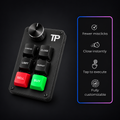
Alt + letter shortcuts work, but in a fast market it's easy to press the wrong one. The Trading Keyboard puts each action on its own key, and our setup page writes the thinkorswim layout to it in one click:
| Key | Sends | thinkorswim command |
|---|---|---|
| BUY | Alt + B | Buy @mkt (default, nothing to set) |
| SELL | Alt + S | Sell @mkt (default, nothing to set) |
| CLOSE | Alt + F | Flat Position (default, nothing to set) |
| CANCEL | Alt + V | Cancel All (set once as a custom hotkey) |
| LIMIT, MARKET | Your choice | For example Reverse Position (Alt + R) |
So after ticking Enabled, Cancel All is the only shortcut to set in thinkorswim. With auto send off, CLOSE and CANCEL ask "Are you sure?": press the knob to answer Yes. Turning the knob scrolls Active Trader's price ladder, or moves the chart left and right.
Watch the whole setup with voice (2 minutes):

Before you trade from the keyboard
- Start in paperMoney. One key means one order: get used to it before it's real money.
- Check the quantity in Active Trader before the first trade of the day.
- Decide on Auto send. Off means one more click per order; on means the key press is the order.
Written by Rene Jelen, CTO at Trading Precision, who's in charge of the Trading Keyboard's setup page and the presets for each platform.