TP Hotkeys Beta


One-key trading for your Trading Precision keyboard.
Install TP Hotkeys
Free with your keyboard, from the Chrome Web Store.
In the Chrome Web Store, click Add to Chrome, then Add extension. If Chrome says Proceed with caution, click Continue to install: TP Hotkeys is new in the Chrome Web Store, and Chrome shows this for new extensions until they've been there a while.
Click the puzzle icon in Chrome's toolbar. Pin TP Hotkeys for TradingView, so its orange TP icon is always in sight.
Had TP Keys from our download before? See Moving from the download.
Connect your keyboard
TP Hotkeys only works with your Trading Precision keyboard.
Plug in your keyboard and click the TP icon in Chrome's toolbar.
Click Connect keyboard. Chrome asks you to choose a device: choose your TP keyboard and click Connect. Chrome remembers it from then on.
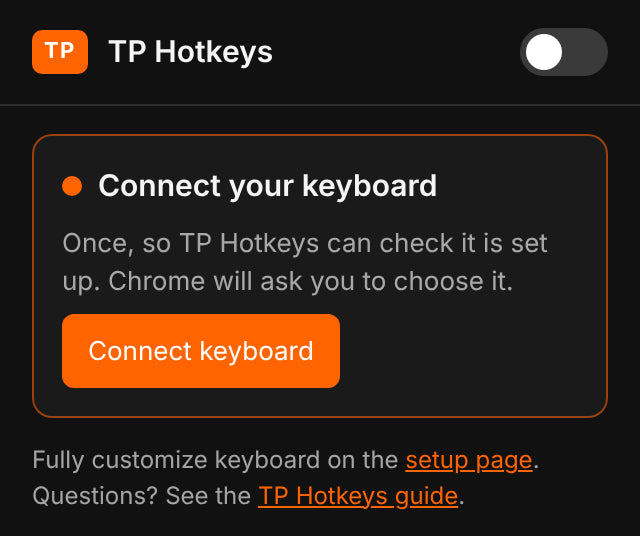
If it says Set up your keyboard for TradingView, click Set up keyboard. That saves BUY, SELL, LIMIT, CLOSE, CANCEL, MARKET and the knob's turns to the keyboard. The knob's press and the lighting stay as they are.
TradingView
BUY and SELL are TradingView's own shortcuts. TP Hotkeys handles CLOSE, CANCEL and MARKET for your current chart.
Open your chart on tradingview.com in Chrome. The TradingView desktop app doesn't run browser extensions. To get a window like it, install tradingview.com as an app from Chrome's menu instead.
Connect your broker in TradingView's Trading Panel. Turn on One-click trading in its trading settings. Without it, TradingView asks to confirm every order and TP Hotkeys stops and tells you.
Switch TP Hotkeys on: the switch in the TP icon's menu, or Alt + Shift + K (Option + Shift + K on a Mac). It starts off every time Chrome starts.
Click on the chart and press BUY, SELL, CLOSE or CANCEL on your keyboard. Want MARKET to move the stop loss to the entry price once a trade is in profit? Turn on Break even: TP icon > Settings.
For a limit order, point the mouse at the price you want and press LIMIT. Turn the knob to move it (each turn is a small step, turning quickly moves faster), then press BUY or SELL to place it, or MARKET to cancel it. To change its size first, press LIMIT again and turn the knob; press LIMIT once more to go back to the price. TP Hotkeys makes it a limit or a stop order depending on which side of the market it is. With no order drawn, the knob changes the order size.
Every press does one thing or nothing. A short message on the chart says which, for example ETHUSD closed or No position on ETHUSD.
Under Settings in the TP icon's menu you can set how far one knob turn moves the line, how much it changes the size, and which messages show on the chart: all of them, only results and problems, or only problems.
Updates
Nothing to do: Chrome updates TP Hotkeys by itself, and your settings and keyboard connection stay. After an update, reload a TradingView tab that was already open.
Moving from the download
Until October 2026, TP Hotkeys was called TP Keys and came as a download you added in Developer mode. That copy doesn't update any more. Moving to the Chrome Web Store takes two minutes.
Open Chrome's extensions page: click to copy it. Paste it into Chrome's address bar and press Enter. Click Remove on the old Trading Precision Keys card.
Click the TP icon and Connect keyboard once more. The store version starts with its own settings, so set them again under Settings if you had changed them.
You can now delete your old TP Keys folder and switch off Developer mode.
Questions
I press CLOSE or CANCEL and nothing happens
Open the TP icon. It shows what's missing. Common problems include:
- keyboard connection
- TP Hotkeys is off (turn it on with Alt + Shift + K)
- a chart was open before installing TP Hotkeys (click Start on this chart, or reload the tab)
It says my keyboard isn't set up, but it is
Reload the TradingView tab. After an update, a chart that was already open can still show what the old version knew. If the message comes back, open the TP icon: Details shows what your keyboard sends for each key.
It says "No position on …", but I have one
CLOSE and CANCEL only act on the symbol of the chart you're on. If your position is on another symbol, open that symbol's chart. The message lists the open positions TP Hotkeys can see.
It says one-click trading must be on
Turn on One-click trading in the trading settings of TradingView's Trading Panel. TP Hotkeys never confirms an order window for you, so it stops instead.
Does it work on a Mac, and in other browsers?
Yes, it works on Windows and Mac, in Google Chrome and other Chrome-based browsers such as Brave. Microsoft Edge first asks you to allow extensions from other stores: click Allow, then add it.
What can TP Hotkeys see and do?
Currently it works only on tradingview.com. It only clicks TradingView's own buttons: one action per key press, for the chart's symbol only. It never places orders on its own.
It doesn't send your account or trading data anywhere. It only asks Trading Precision for button-location updates and version updates.
The details are in our software and downloads privacy notice, and the licence and your responsibility for your orders in our Terms of Service.
What does Beta mean here?
TP Hotkeys is new. Try it on paper trading or a demo account first. Check every result on the platform: you're responsible for your orders and positions. Tell us what you find, it helps a lot.
Still stuck?
Write to info@trading-precision.com. A screenshot of the TP icon's menu with Details open helps us see what's going on.
TradingView is a trademark of TradingView, Inc. TP Hotkeys is made by Trading Precision and isn't affiliated with TradingView.
Software privacy · Privacy Policy · Terms of Service