TP Control Panel MetaTrader 5
Support your Trading Keyboard in MetaTrader 5.
Before you start
- 1Install MetaTrader 5 for desktop
The latest version, on Windows or Mac. The panel doesn't run in the web or phone apps. Using MetaTrader 4? Follow the MT4 guide.
- 2Sign in with your broker account
Need one? We trade with PU Prime ourselves and recommend it.
Affiliate link: we may earn a commission, at no extra cost to you. - 3Start on a demo account
Try the panel and your keyboard on a free demo account before you trade real money.
Install the panel
One file, TP_Panel.ex5.
Windows
Downloaded? Set everything up with the video.
Double-click TP_Panel.ex5 in your Downloads folder.
Turn on Algo Trading.
Drag TP_Panel from the Navigator onto your chart.
On the Dependencies tab, tick Allow DLL imports and click OK.
Press Shift + A to turn the panel ON.
macOS
1 Add the panel to MetaTrader 5
Open MetaTrader 5 once, then close it.
In Finder, press Cmd + Shift + G and paste this path:
Drag TP_Panel.ex5 into the Experts folder that opens.
Open MetaTrader 5.
2 Attach it to a chart
Turn on Algo Trading.

Drag TP_Panel from the Navigator onto your chart.

Tick Allow DLL imports.

Press Shift + A to turn the panel ON.


Your keys
The panel reads Shift with a letter, and the knob as the mouse wheel (or F19 / F20, as in MetaTrader 4). The keys work anywhere in MetaTrader 5, with no need to click the chart first. No keyboard? Every action is also on the panel's on-screen keyboard.
What each key sends and does
Shift + A on your computer's keyboard turns the panel ON or OFF.
While you type in a text box outside the chart, such as the search in Market Watch, the keys are ignored, so a capital letter never places a trade. Click the chart to trade again.
Set up your keyboard for another platform? Open this page in Chrome or Edge on your computer to check its keys and knob, or open the setup page from your order email, choose Configure keyboard and load the MetaTrader 5 preset.
Watch the panel in action
A short walkthrough on a real chart: order size, stop loss and take profit, partial take profit, break even, closing and LIMIT orders.

Plays from YouTube. Open it on YouTube
The panel
Everything sits in one small box on your chart. Drag it anywhere by the arrows in its corner.

Place a trade
Check the size and the stop loss first: the panel uses them for every order.
Order size 0:28 SL and TP 0:55 Placing a trade 1:07 LIMIT orders 2:29
Choose the size on the panel: LOT, % or AMT.
Switch SL and TP ON. Their lines appear on the chart. Move them by dragging, scrolling the mouse wheel or turning the knob.
At market: press BUY or SELL. The trade opens at once.
At a price you choose: press LIMIT. A dotted preview line appears at the price. It isn't an order yet. Move it to your entry, then press BUY or SELL to place it. Press MARKET to go back.
To add a stop loss or take profit before you place it, drag SL or TP out of the LIMIT line, or click them. They move with the LIMIT line, and switch sides if you move it to the other side of the price.
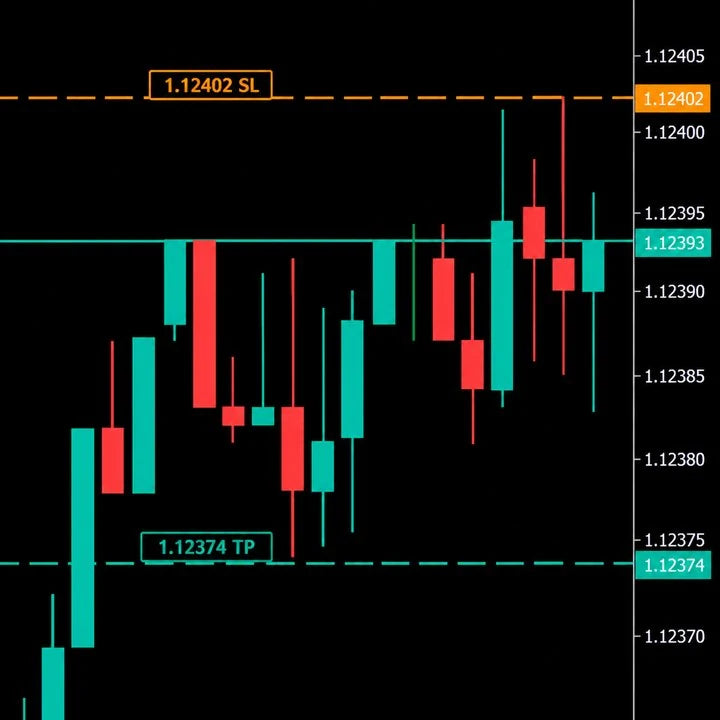
The TP box shows the risk-reward after fees, for example 2.5R: what you make at TP for every 1 you lose at SL. With no stop loss there is no RR.
Open trades show their profit in R too. You can turn that off in the panel's Settings.
Manage open trades
The Cancel/Close button on the panel picks which trades CLOSE and CANCEL act on: All, Profit, First, Last or Partial. The button next to BE does the same for break even.
Partial take profit 1:30 Break even 1:55 Closing trades 2:06
Closes positions. With Profit, only the trades in profit after fees, and the others stay open.
Moves the stop to break even once the trade is in profit: All, First or Last.
With All and several trades open in the same direction, they share one stop at their combined break even, so if the price comes back they close at about zero together.
Choose Partial on the Cancel/Close button to take part of the position off at TP1: 50% by default, or an amount or lots you set. TP1 shows its own RR.
The stop loss of the rest stays where it is, unless you turn on Rest to BE in the Settings window's Auto tab.
Both are measured in % of the entry price by default. In the Auto tab you can switch to Pts (points of price) or R (1R is a trade's first stop loss distance: what you lose if the stop is hit). % and Pts also work on trades without a stop loss; R needs one.
Settings
The panel remembers what you set on it, also after a restart, an update or on another account.
Risk % and AMT apply to every pair. Lot size and SL / TP are kept per pair. A new pair starts from the last pair of the same kind (forex, gold, indices, crypto), or from built-in SL / TP for popular symbols.
The Settings window
Click the gear on the panel, next to BE, to open it, and the × to close it. Drag its ✥ to move it anywhere; double-click the ✥ to put it back next to the panel. Click a value, then type it or turn the knob. Changes are saved at once and apply to every pair.
- GeneralHow much one wheel or knob step changes a value, what a new pair starts with (lot, SL %, TP %), showing open trades' profit in R, and the panel size (0 is automatic, 1.25 makes it 125%)
- AutoMeasure in %, Pts, Pips or R; Group sides; auto break-even on or off and when; the trailing stop on or off with when it starts and how far behind it stays; and moving the rest's stop to break even after a partial TP
- SoundsSounds on or off, and the sound for each event: click an event to see all sounds and pick one (it plays)
Group sides (Auto tab, off by default) treats all your buys as one and all your sells as one. Auto break-even and the trailing stop measure from each side's average entry and move every stop loss on that side to the same price. Trades on the same side with their stop loss (or take profit) at the same price show one line and one box with the total; dragging it, or clicking ×, changes all of them. Trades on the same side opened at nearly the same price share one entry box: its × closes all of them and reverse turns them into one trade the other way. A new trade opened without a stop loss (or take profit) gets the side's shared one; a trade opened with its own keeps it. If some trades in a shared entry box have no stop loss, its SL button sets one on just those: click to copy the others' stop loss, or drag. Drag a line close to another one on the same side and it snaps to it and joins the group. Profit in R is shown once per side.
Custom sounds
- In MetaTrader 5 click File > Open Data Folder, then open MQL5 > Files.
- Make a folder named TP_Sounds and copy your sounds into it. They must be .wav files, with names up to 40 characters, up to 24 files.
- On the panel open Settings > Sounds and click an event. Your sounds show in blue at the end of the list.
Updates
New versions download from this page. Your settings stay.
Download the panel again.
Windows: double-click the new TP_Panel.ex5.
Mac: drag the new TP_Panel.ex5 into the Experts folder (install step 1) and choose Replace.
Restart MetaTrader 5, or drag TP_Panel onto your chart again, so the new version runs.
Questions
The panel doesn't appear on the chart
- Algo Trading must be on (green) in the top toolbar.
- Drag the panel onto the chart again and check Allow Algo Trading on the Common tab and Allow DLL imports on the Dependencies tab.
Still nothing? Open the Toolbox (Ctrl + T) and look at the Experts and Journal tabs: MetaTrader 5 says there why it stopped.
I press a key and nothing happens
- The panel must be ON: press Shift + A.
- Your keyboard's keys must send what the panel reads: check your keyboard.
- Were you typing in a text box? Click the chart, then press the key again.
My orders are rejected
The reason is in the Experts tab of the Toolbox (Ctrl + T). Common ones are a closed market, a size or stop your broker doesn't allow, or not enough margin.
Some brokers don't allow Expert Advisors on some account types. If it says trading by Expert Advisors is disabled, ask your broker, or try a demo account.
Can I use the panel without the keyboard?
Yes. Click the keyboard icon on the panel to open the on-screen keyboard: BUY, SELL, LIMIT, MARKET, CLOSE and CANCEL.
The panel is too small or too big
Set Panel size in the Settings window's General tab: 0 is automatic, 1.25 makes it 125%.
Does it work in MetaTrader 4, or in the web or phone app?
MetaTrader 4: yes, with its own version. Follow the MT4 guide. The web and phone apps: no, the panel needs the desktop app, on Windows or Mac.
Why does it need Allow DLL imports?
To read the Shift shortcuts from your keyboard while MetaTrader 5 is in front, even when the chart isn't selected. It only reads keys, and only the ones in Your keys. Details are in our software and downloads privacy notice.
Still stuck?
Risk. Trading forex, CFDs and other leveraged products carries a high risk of losing money quickly. Only trade money you can afford to lose, and test the panel and the keyboard on a demo account first.
Not advice. The panel and this guide are tools, not financial advice or a recommendation to trade. Sizes worked out from Risk % or AMT are estimates: slippage, gaps, spreads and your broker's lot steps can make the real loss bigger.
Real orders. The keys and the panel's buttons send orders straight away, with no confirmation. Check every order in MetaTrader 5.
Runs on your computer. Auto break-even, the trailing stop and partial take profit work only while MetaTrader 5 is open and connected with the panel on the chart. A stop loss or take profit already set stays with your broker.
Your responsibility. The panel is provided as is. We test it carefully, but can't promise it works without errors with every broker, symbol or MetaTrader 5 update. You are responsible for every order placed with the panel or the keyboard, and to the extent the law allows, Trading Precision is not liable for trading losses.
The PU Prime link is an affiliate link. MetaTrader is a trademark of MetaQuotes Ltd. The TP Control Panel is made by Trading Precision and isn't affiliated with MetaQuotes.
Checking your order…
One moment.
Download the MT5 panel
You're logged in, so the download starts without the form.
Download the MT5 panel
Enter your order number and the email you ordered with. The order number is in your order confirmation email, for example #1234.
Need help? Write to info@trading-precision.com. How we use your order details: privacy.
Your download has started
TP_Panel.ex5 will be in your Downloads folder in a moment. If it didn't start, download it again.
- Windows: double-click TP_Panel.ex5. Mac: drag it into MetaTrader 5's Experts folder.
- Turn on Algo Trading, drag TP_Panel onto your chart and tick Allow DLL imports.
- Press Shift + A to turn the panel ON.